- DATE:
- AUTHOR:
- The Customer Portal team
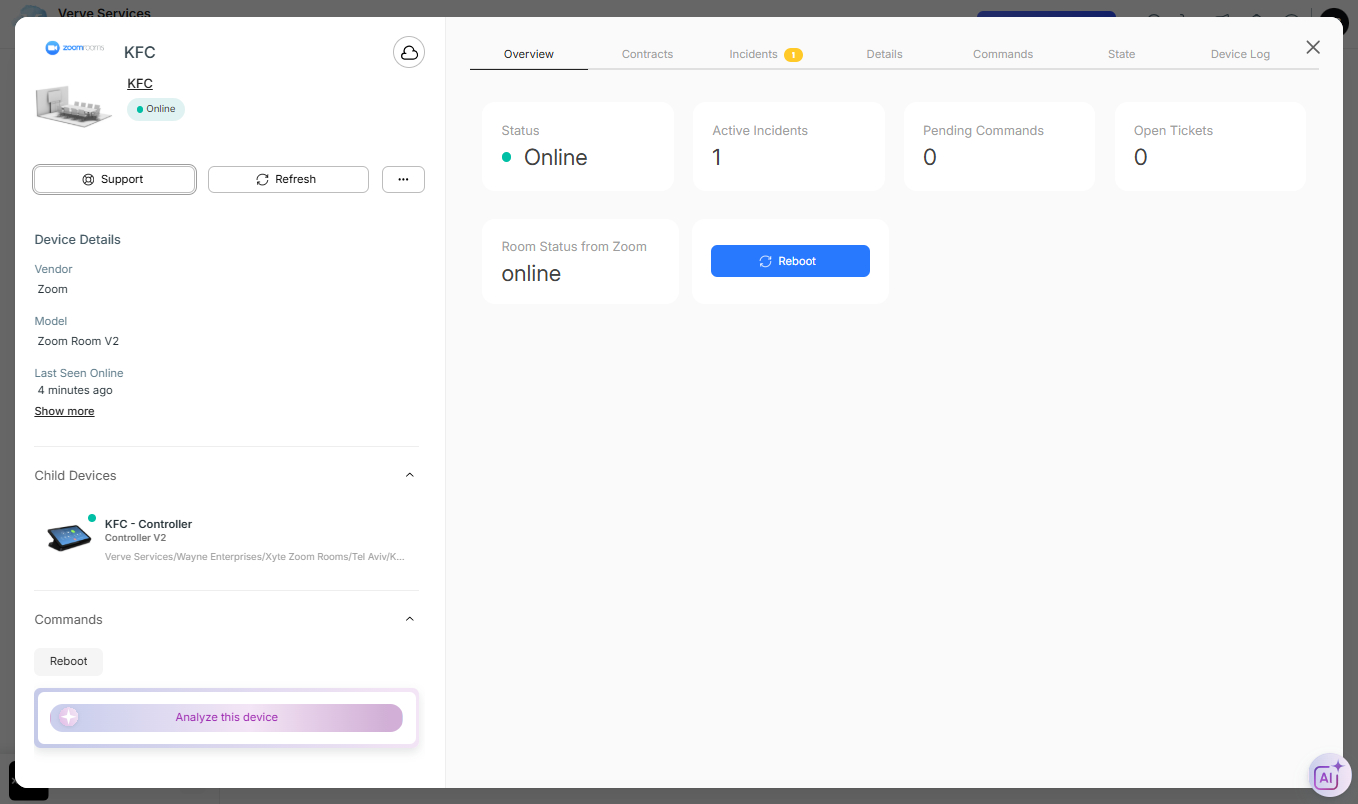
Reboot Zoom Rooms (V2) & View Zoom Phones (V2)
You can now remotely reboot Zoom Rooms (V2) directly from the platform. This reboot applies to the Zoom Room app running on computers and control panels, helping you resolve room issues faster without on-site intervention.
Additionally, you can view Zoom Phones (V2) in the platform and reboot desk phones.
Both features require re-authorizing your existing Zoom integration to grant additional permissions. If permissions are missing, you’ll see a clear prompt guiding you through the process.
How to re-authenticate:
Go to Connections → Cloud Connectors
Select your Zoom Connector
Click the Re-authentication link and enter the passcode
In Zoom, approve the requested permissions
Zoom Phone users: be sure to check all phone-related permission boxes
Click Allow and return to the platform
Once completed, reboot commands will be available immediately.
Please contact support@xyte.io with any questions.