- DATE:
- AUTHOR:
- The Customer Portal team
Introducing Rooms: Monitor and manage your devices in a real-world room context to maximize room uptime
We’re excited to launch Rooms, a new way to monitor, understand, and manage every room in your environment, all in one place. What’s included?
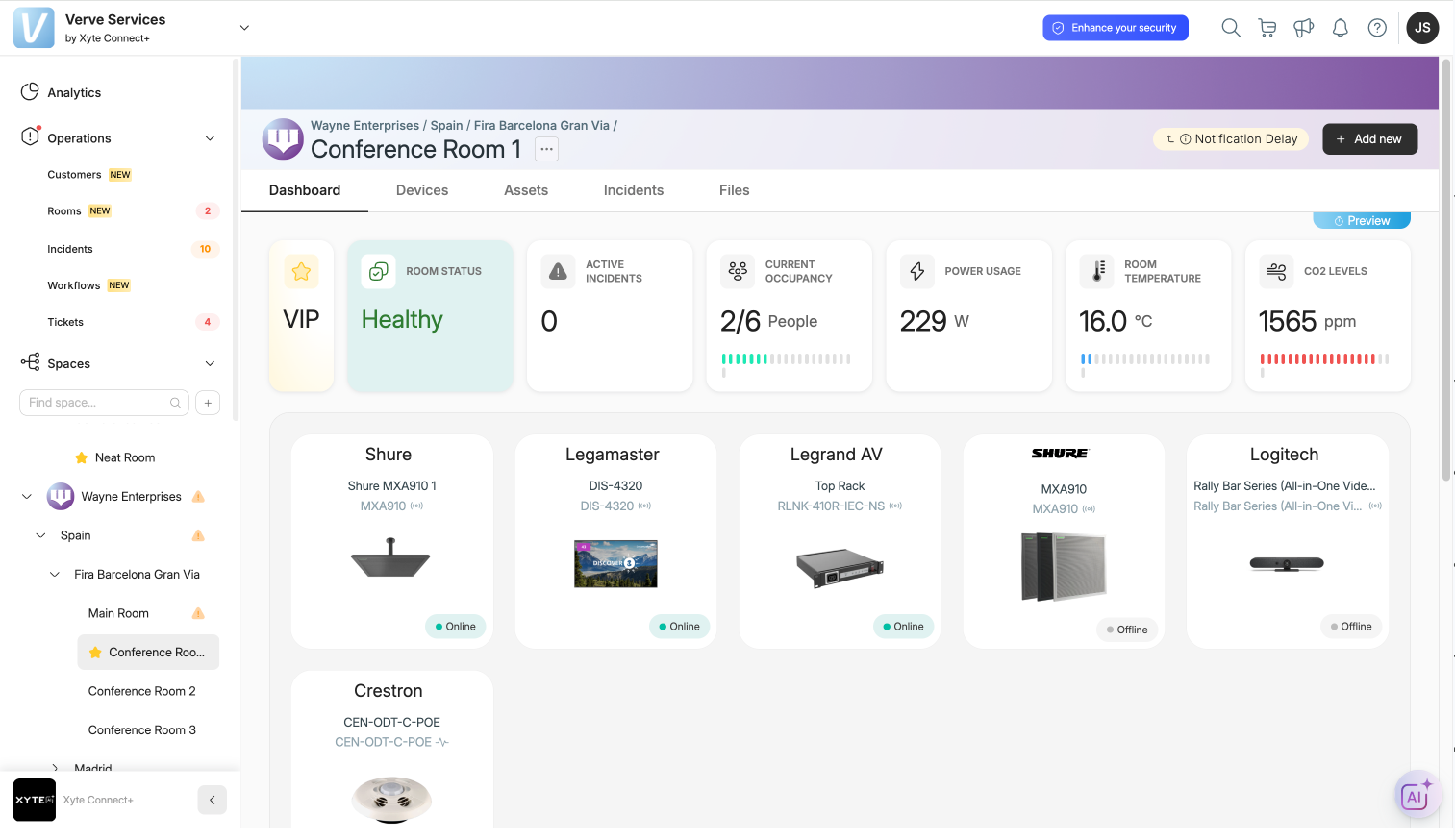
Room Dashboard
Within the space hierarchy each “leaf” (end-space) is considered a room. Typically devices will be located in a specific room and not in a higher-level space. A full, new Room Dashboard is available for each leaf, showing everything you need to diagnose issues, optimize performance, and take action, including:
Overall room health status and active incidents
Devices in the room
Room location
Room configuration and settings, including workflows
Insights from AI Teammate, tailored specifically to that room
Room status may be one of the following: Healthy, Error, Warning, Unknown, Maintenance, or Empty (meaning, no devices).
Rooms can also be designated as “VIP” rooms, which will receive higher priority for resolving issues. To set a room as a VIP room, toggle on the VIP indicator in the Room Configuration widget on the dashboard.
Please note: higher-level spaces or branches still show the existing, customizable dashboard.
Rooms List
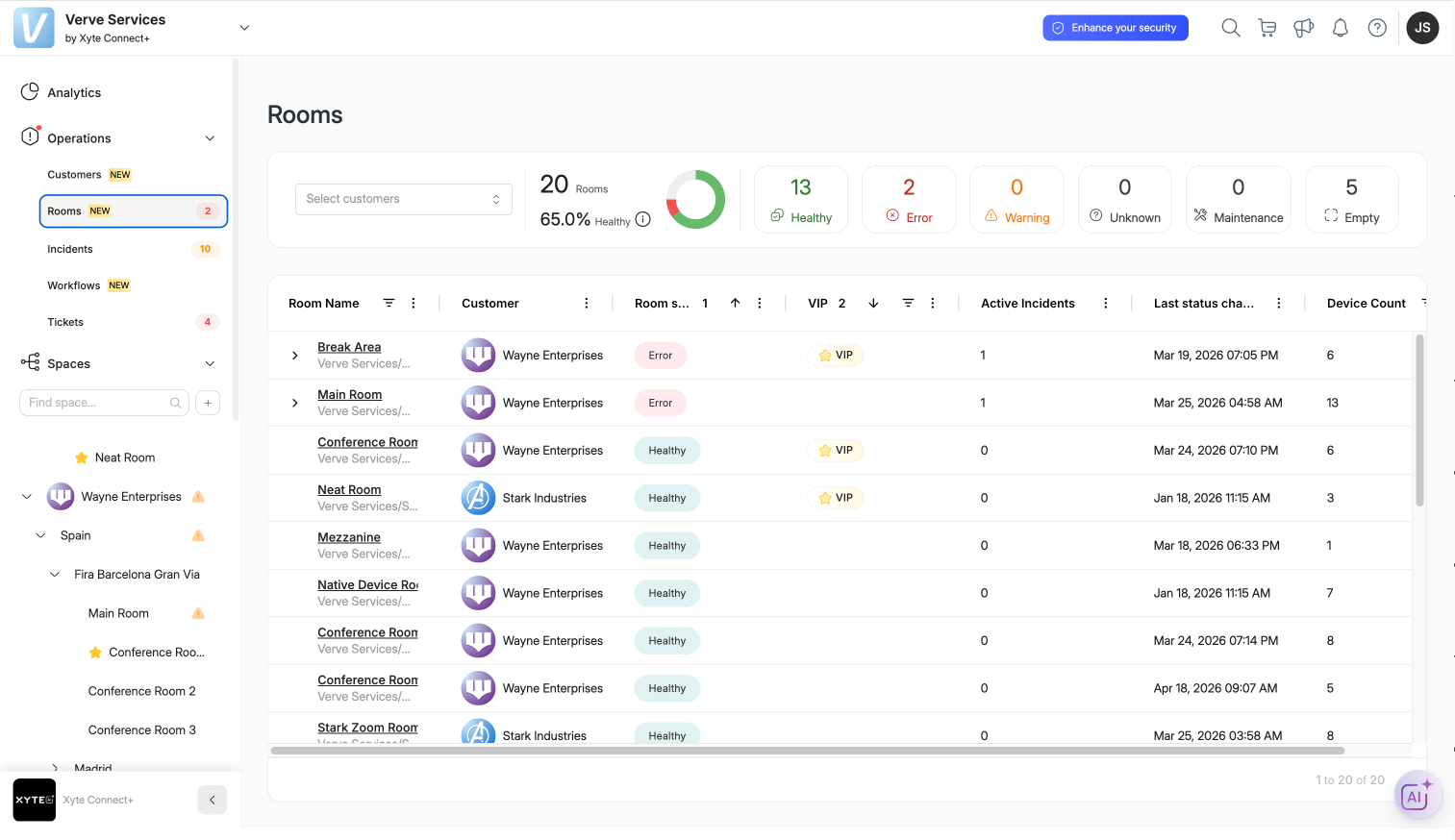
In addition to the Room Dashboard, we’ve created a new Rooms List, located on the left-hand menu, under the Operations tab. At the top of the Rooms List, you’ll see a rooms status summary with KPIs on health and status. Below this, you’ll see a table with each individual room, from which you can instantly see:
Current room status
Number of active incidents
Last status change
Device count
VIP room indicator
Customer association (for MSPs)
For MSPs, the Rooms List will show a unified, aggregated view of room health across your entire customer portfolio so you can spot issues faster and stay ahead of problems.
By default, the list is sorted to prioritize rooms with error status, and within that, VIP rooms first. The list can be filtered by customer or from anywhere in the KPI summary, and filtered or sorted by any column in the table below. If a room has an incident, the table entry for the room can be expanded to see individual incidents. Drill down from either the room or from an individual incident to quickly focus on what needs attention.
Please contact support@xyte.ai with any questions.